
Setup guide
How to set up your Kommercly store
You make your store from your phone: sign up, add products with your camera and share your link. You do not need a computer.
Updated 7 October 2026
See live stores:Dobby (opens in a new tab)Stellify (opens in a new tab)
Set up your store from your phone
You need your phone, a few product photos and a WhatsApp number. You do not need a computer.
Step 1: Sign up on kommercly.com
Open the Create your store form. Then fill in:
- Store name. It becomes your link, like nodifashion.kommercly.com.
- Your email. If you change phones, your login link comes here.
- Country and WhatsApp number. Customer orders come to this number. Your country sets the money your prices show in.
- Shop address, if you want it at the bottom of your store. You can leave it empty.
Tap Create Free Store.
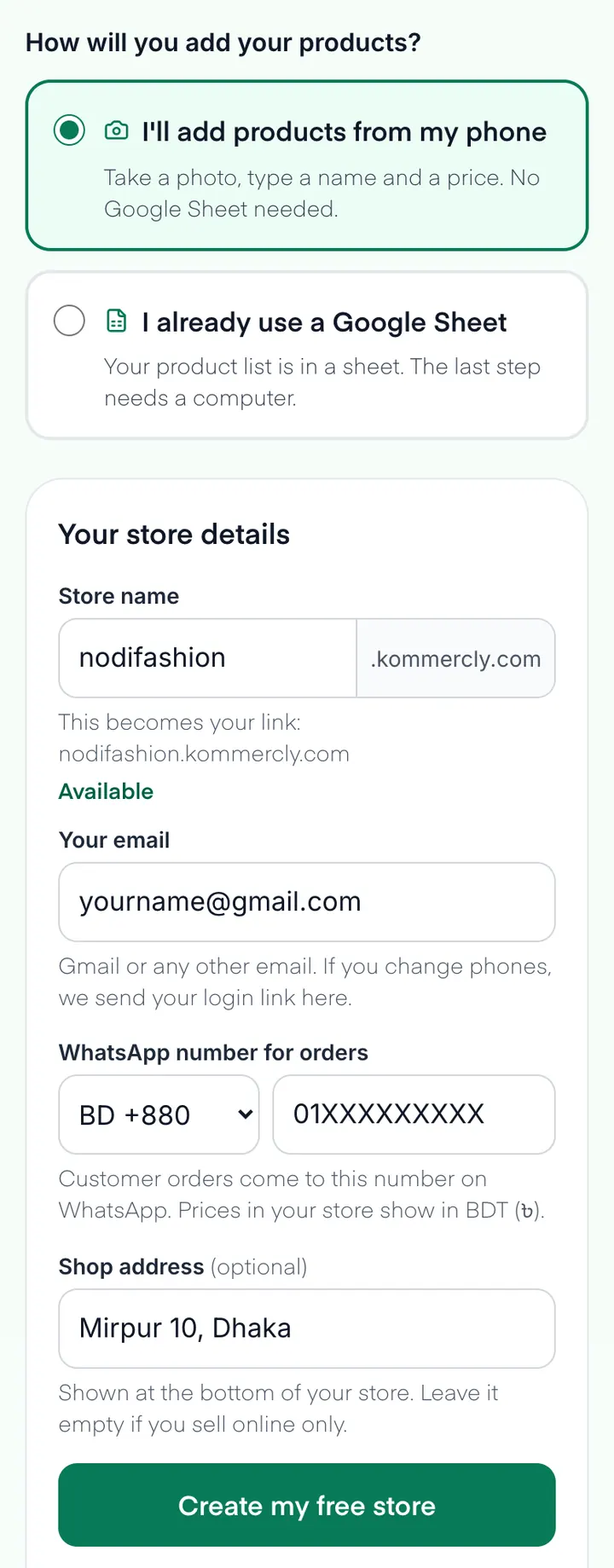
The signup form. Your store name becomes your link. Step 2: You are signed in
Your store opens on its own link, already signed in, on the Add a product screen. There is no password to make. Later you sign in at yourstore.kommercly.com/admin (see Sign in again).
Step 3: Add your first product
Tap Take a photo or Choose from gallery. You can add up to 5 photos, and the first one is the main photo. Type the product name and the price.
These are optional, you can add them now or later:
- Offer price, lower than the price. The store shows it as a discount.
- Stock, how many you have. The store stops orders when it reaches 0.
- Sizes or colours, like S, M, L, XL. Customers pick one before they order.
- Description, category and tags.
Tap Add to my store.
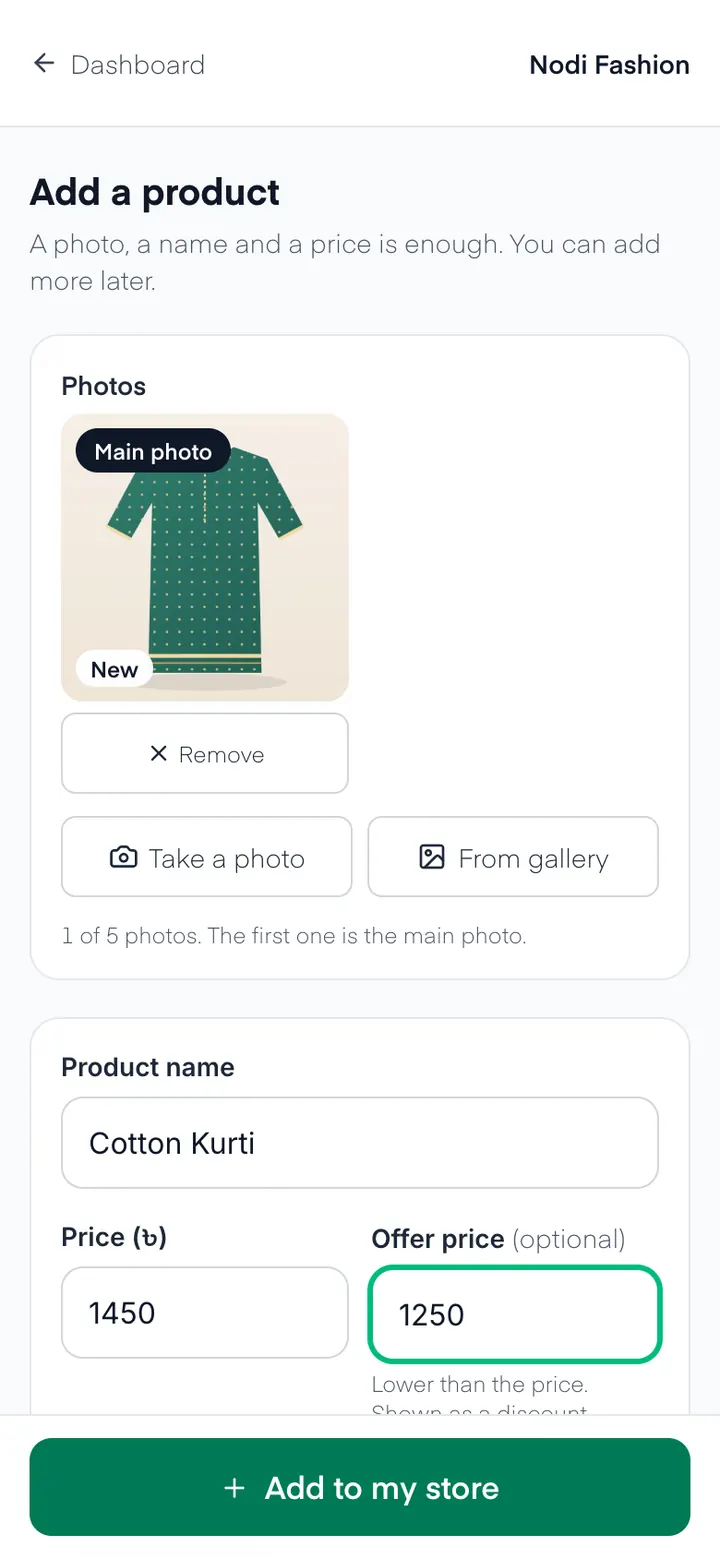
Add a product: a photo, a name and a price. When it is saved, you see your store link with Share on WhatsApp and Copy link. Tap Add another product for the next one. The Free plan holds up to 20 products.

After you save, your link is ready to share. Step 4: Set up your shop in Settings
On the dashboard, tap Settings. Shop details, Delivery and Offers each have a Save button. The logo, the banner and the store look change as soon as you pick them.
- Shop details: the shop name customers see, a line about your shop, the WhatsApp number for orders, your address, email and currency.
- Logo and banner: the logo shows at the top of every page. The banner shows only on the Modern look.
- Store look: Classic is plain and fits more products on one screen. Modern has a big banner and rounded cards.
- Delivery areas and charges: for example Inside Dhaka and Outside Dhaka, each with its own charge. The customer picks one at checkout and the charge is added to the total. Use 0 for free delivery.
- Offers: a price for a set number of items, like 3 for ৳1000. It works when the bag has exactly that many items, and it can also make delivery free.
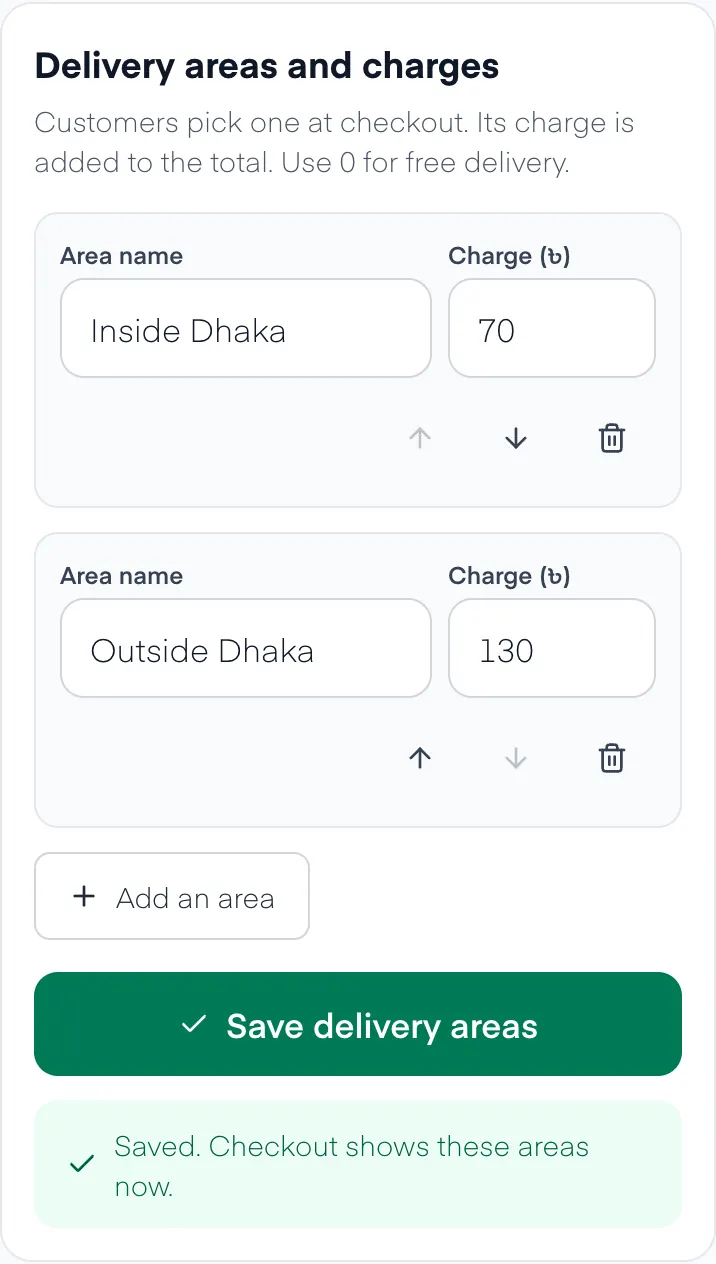
Delivery areas in Settings. These charges are only an example. 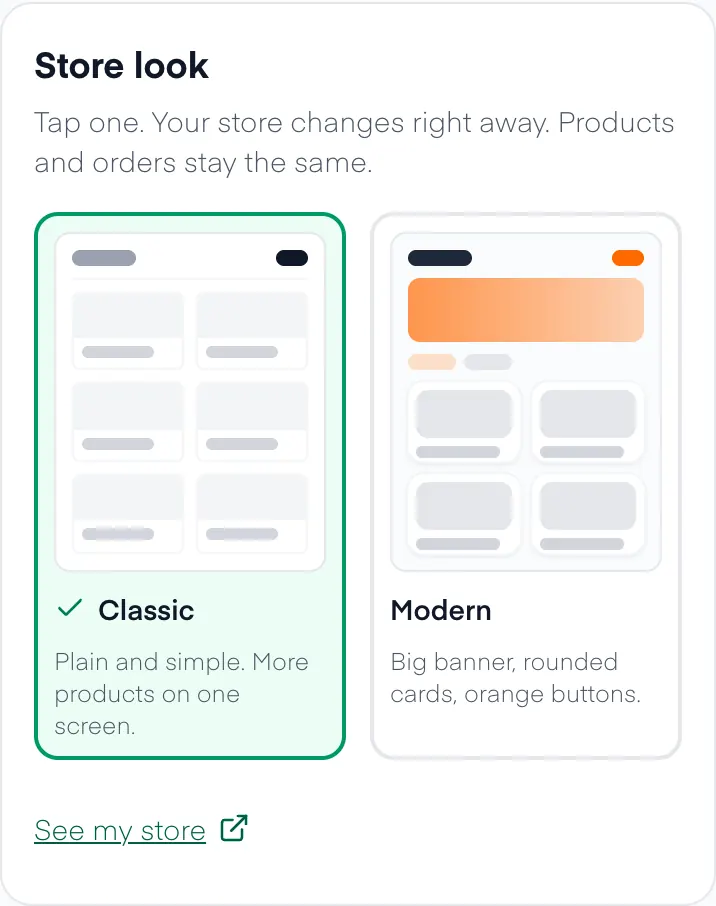
Store look: tap Classic or Modern. Step 5: Share your link
Your store is at yourname.kommercly.com. On the dashboard, tap Share my store to send it on WhatsApp or copy it. Put it on your Facebook page and in your posts. See where to share it.
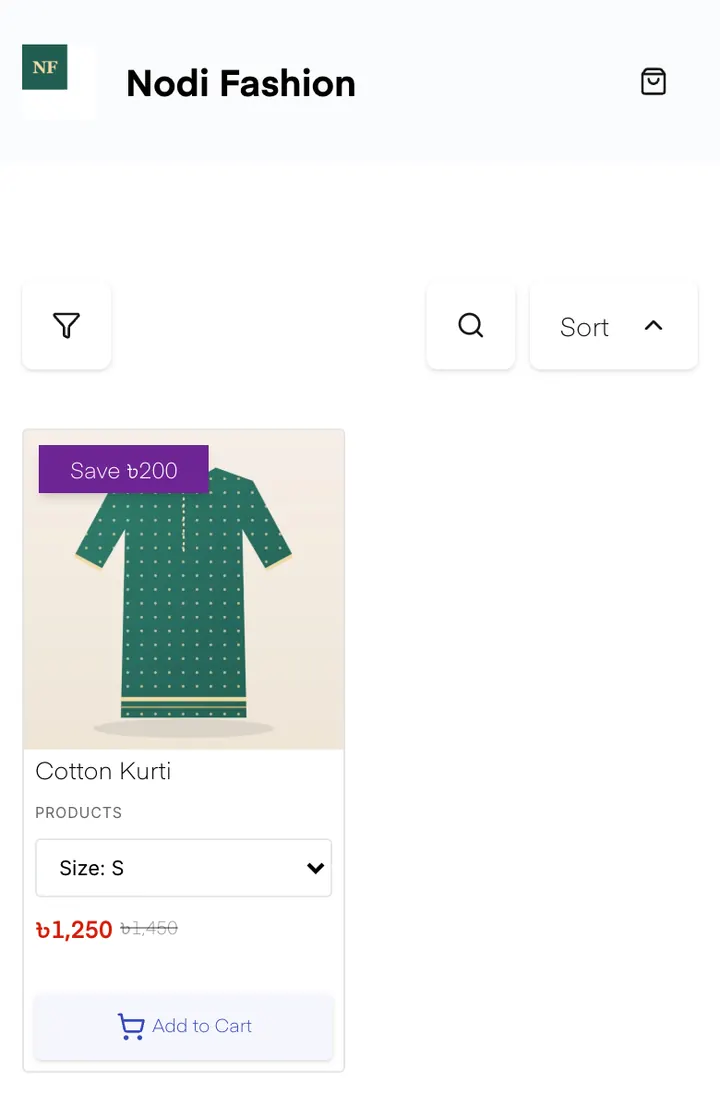
What customers see when they open your link. Step 6: Orders come to WhatsApp and to Orders
A customer picks a product, a size and a delivery area, then types a name, phone number and address. WhatsApp opens on the customer's phone with the full order typed out. When they tap Send, it reaches your WhatsApp.
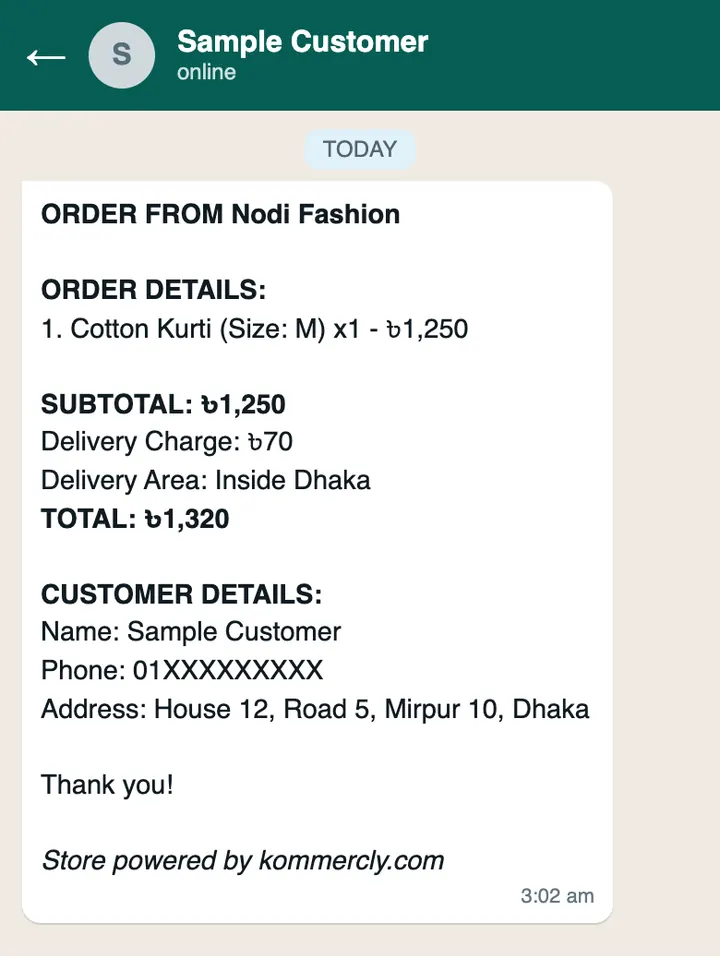
The order message as it arrives on your WhatsApp. The text is from a real test order; the chat around it is a drawing. Every order is also saved in Orders on your dashboard. Call or message the customer to confirm, then move the order along as you work: New, Confirmed, Shipped, Delivered. You can also mark it Cancelled.
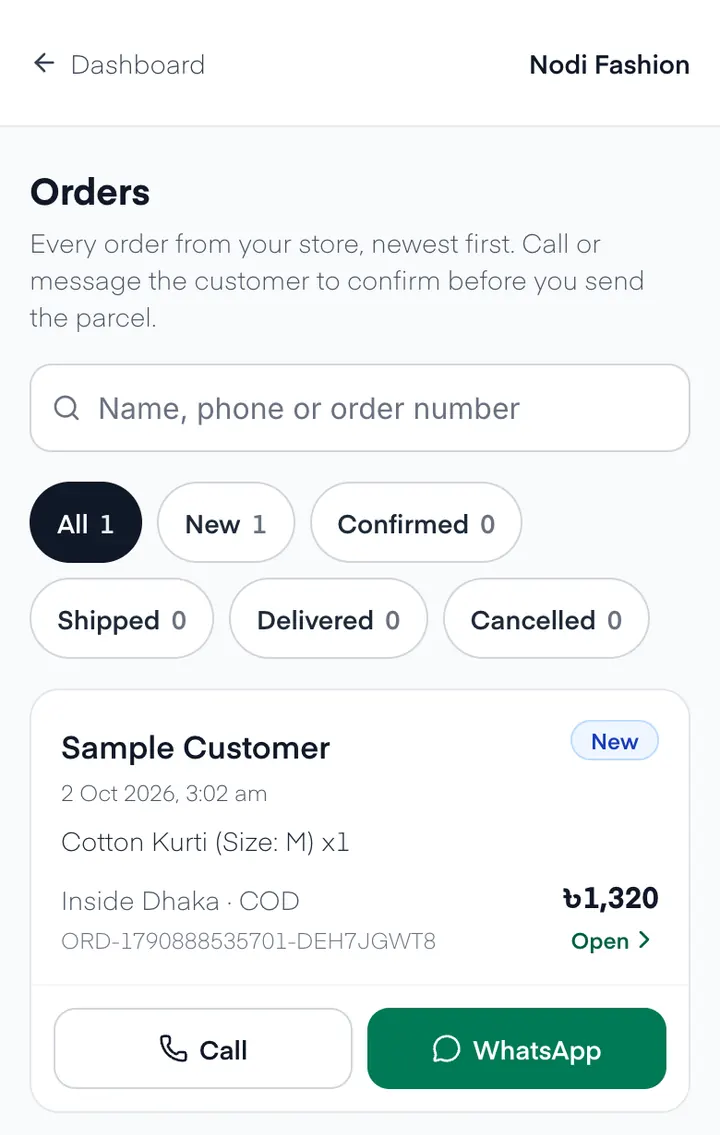
Every order is also saved in Orders.
After setup
Sign in again
Go to yourstore.kommercly.com/admin, with your own store name in place of yourstore.
- Tap Continue with Google and pick the Google account you made the store with.
- Inside Facebook or Messenger, Google sign-in does not work. On Android tap Open in Chrome. On iPhone tap ••• and then Open in browser.
- No Google account? Tap Email me a login link. It works once and expires in 15 minutes.
Manage orders
Open Orders on the dashboard. New orders show a red badge. Open an order to see the products, address and total, to call or WhatsApp the customer, and to move it to Confirmed, Shipped or Delivered.
Connect Steadfast
Booking a Steadfast parcel from an order is part of the Premium plan. Pathao and other couriers are not supported yet.
- In your Steadfast merchant panel, open Settings, then API, and copy your API key and secret key.
- On your dashboard, open Settings, then Courier (Steadfast). Paste both keys and tap Connect Steadfast.
- Open any order in Orders and tap Book with Steadfast. The tracking code is saved on the order and the order moves to Shipped.
Change a price or stock
On the dashboard, find the product under Your products and tap Edit.
Offers
Open Settings, then Offers.
Stuck?
I can't log in to my store. What do I do?
Open yourstore.kommercly.com/admin, with your own store name in place of yourstore. Tap Continue with Google and pick the Google account you made the store with. If you opened the link inside Facebook or Messenger, tap Open in Chrome first, because Google sign-in does not work inside those apps. If your email is not a Google account, tap Email me a login link. The link works once and expires in 15 minutes. If it is not in your inbox, check the Spam folder.
It says my store name is taken.
Each store name is one link, so two stores cannot have the same one. Add a word to make it yours, like your area or bd, for example nodifashionbd or nodi-fashion-dhaka. Use letters and numbers. A space becomes a hyphen. The shop name customers see at the top of your store is set on its own, so it can still be your full shop name.
A customer ordered, but nothing came to my WhatsApp.
When a customer places an order, WhatsApp opens on the customer's phone with the order already typed. It reaches you only after the customer taps Send. If they close WhatsApp without sending, you get no message. The order is still saved in Orders on your dashboard, with the customer's name, phone number and address, so you can call or message them. Also check that the WhatsApp number in your store is correct.
How do I change my WhatsApp number?
Open Settings, then Shop details. Change WhatsApp number for orders and tap Save shop details. New orders go to the new number.
How many products can I add on the free plan?
Up to 20 products on the Free plan, with 0% commission and no card. If you need more, see the paid plans under Billing in your dashboard. You pay for them by bKash.
Still stuck? Tell us the step and we reply on WhatsApp.
Message us on WhatsApp(opens WhatsApp)Ready to make your store?
Free plan, 0% commission, no card. You add your first product on the next screen.
Create Free Store